Autolinker
How to automatically turn text patterns on any webpage into clickable links.
Autolinker
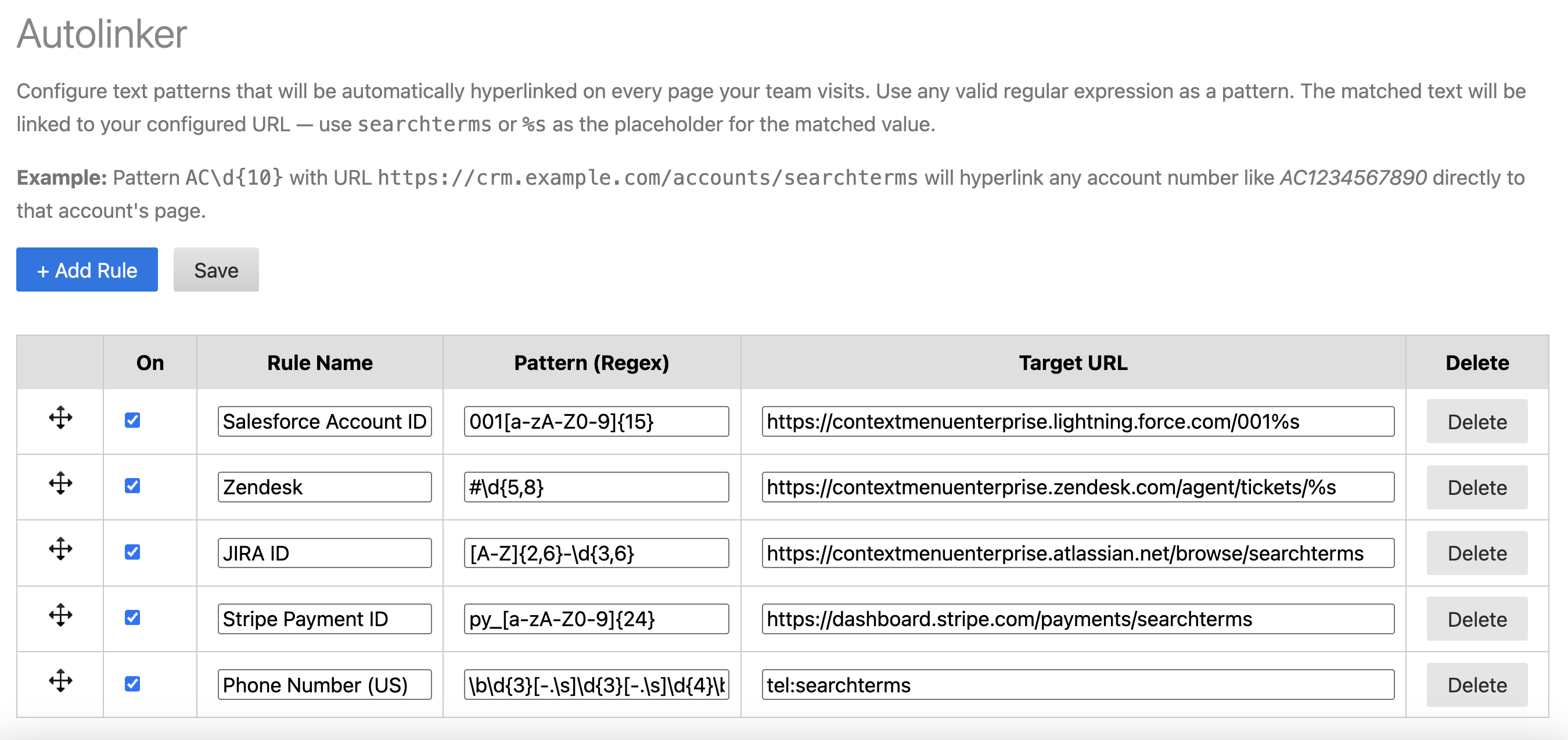
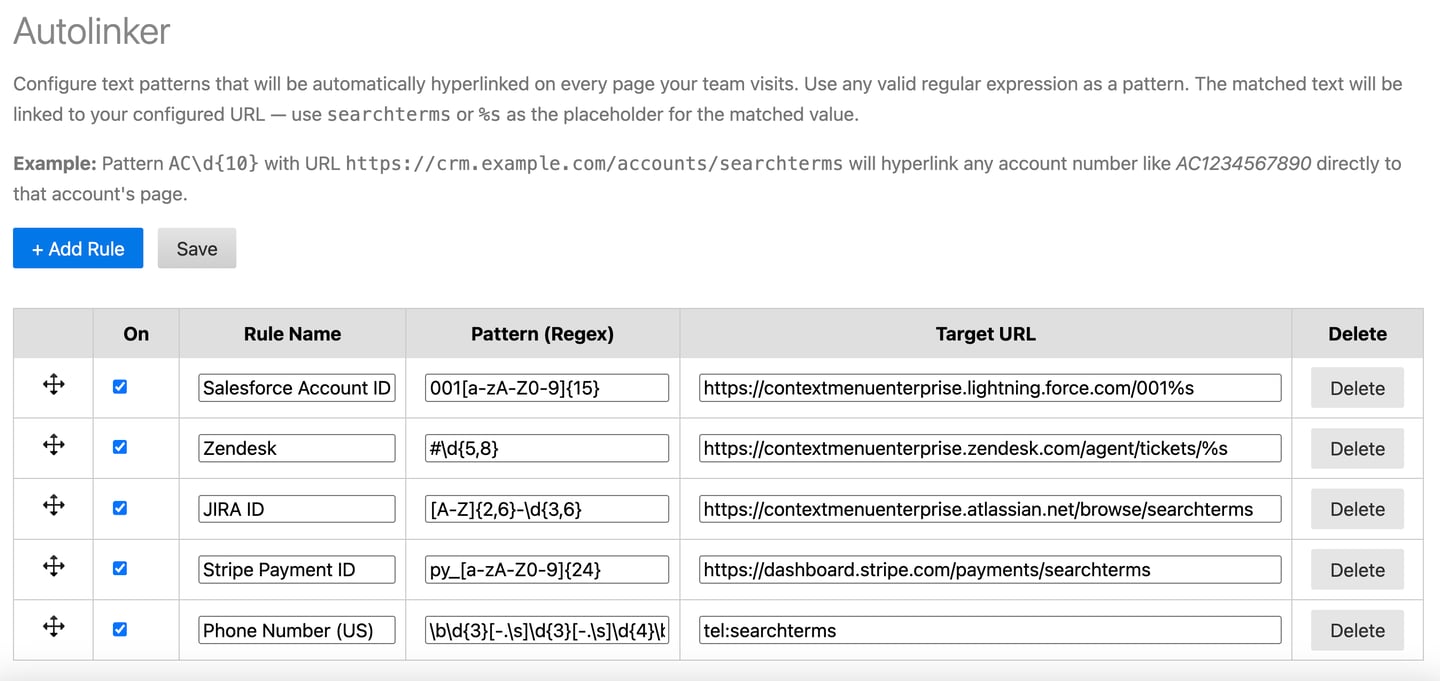
Autolinker scans every webpage your team visits and automatically converts matching text into clickable links — without any manual action. If your team regularly looks up account numbers, ticket IDs, error codes, or any other repeating pattern, Autolinker turns those values into one-click links to the right destination the moment the page loads.
Adding a Rule
1. Open the extension and go to Options → Autolinker.
2. Click + Add Rule.
3. Enter a Rule Name (for your reference only —
does not appear on the page).
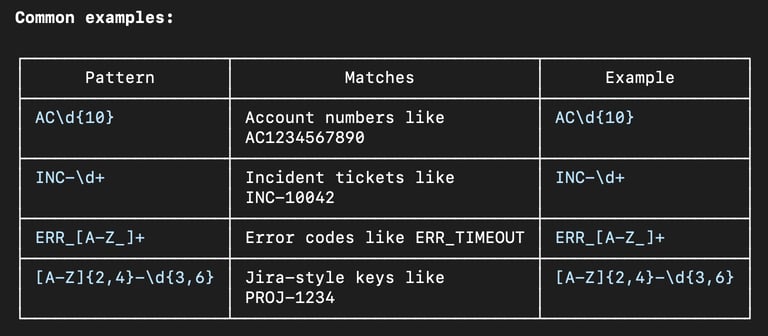
4. Enter a Pattern — a regular expression that matches
the text you want to link.
5. Enter a Target URL — the destination URL.
Use searchterms or %s as a placeholder for the matched value.
6. Click Save.
Pattern Syntax
Autolinker uses standard JavaScript regular expressions. You do not need to add flags — matching is applied globally across all text on the page.
Target URL Format
Use searchterms or %s as the placeholder for the matched text. The matched value will be URL-encoded automatically.
Examples:
- Salesforce account lookup:
https://yourorg.lightning.force.com/search?q=searchterms
- Jira ticket:
https://yourorg.atlassian.net/browse/searchterms
- Internal knowledge base:
How It Works
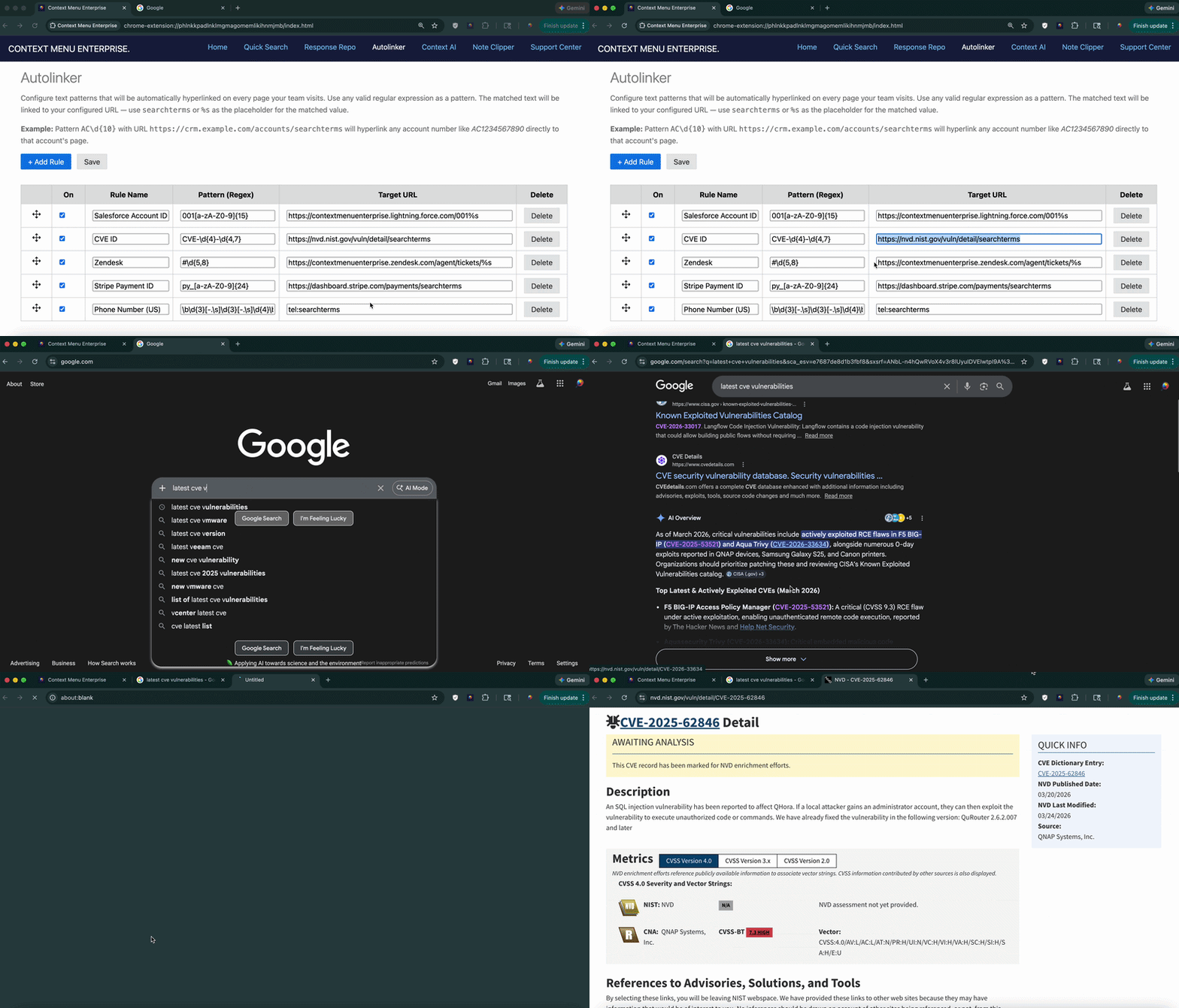
When you navigate to a page, Autolinker scans all visible text and wraps any matches in a clickable link that opens in a new tab. It also watches for dynamically loaded content so matches that appear after the initial page load are linked as well.
Autolinker does not modify editable fields — text inside input boxes, text areas, and content-editable elements is never touched.
Organizing Rules
Reordering
Drag the handle on any row to reorder rules. Rules are applied in order — the first matching rule for a given piece of text wins.
Disabling Rules
Uncheck the checkbox on any rule to disable it without deleting it.
Editing and Deleting
- Update any field inline and click Save to apply changes.
- Click Delete to permanently remove a rule.
Team-Managed Rules
If your administrator has connected a Team Configuration, managed Autolinker rules are applied automatically on every page. If the product is locked, Add and Delete controls are hidden and only managed rules are active.
This is particularly powerful for enterprise teams — admins can instantly push rules that link internal IDs, ticket numbers, or account codes across the entire team's browsers without any individual setup.
Important Tips
- Test your regex first — paste your pattern into https://regex101.com
(JavaScript mode) to confirm it matches what you expect before saving.
- Be specific — overly broad patterns (like \d+) will match too much and create unwanted links across every page. Narrow patterns with a prefix (like AC\d{10}) are much safer.
- Rule order matters — if two rules could match the same text, place the more specific one first.
- Performance — Autolinker runs on every page load. Keep your rule list lean. Patterns with catastrophic backtracking can slow page rendering.
Subscribe