Context AI
How to run AI prompts on selected text directly from the right-click menu without leaving the page.
Context AI
Context AI lets you run AI-powered prompts on any text you select on a webpage — summarize, rewrite, translate, escalate, extract key details, or anything your team needs — without switching tabs or opening a separate tool. Results appear in a clean overlay directly on the page.
Setup
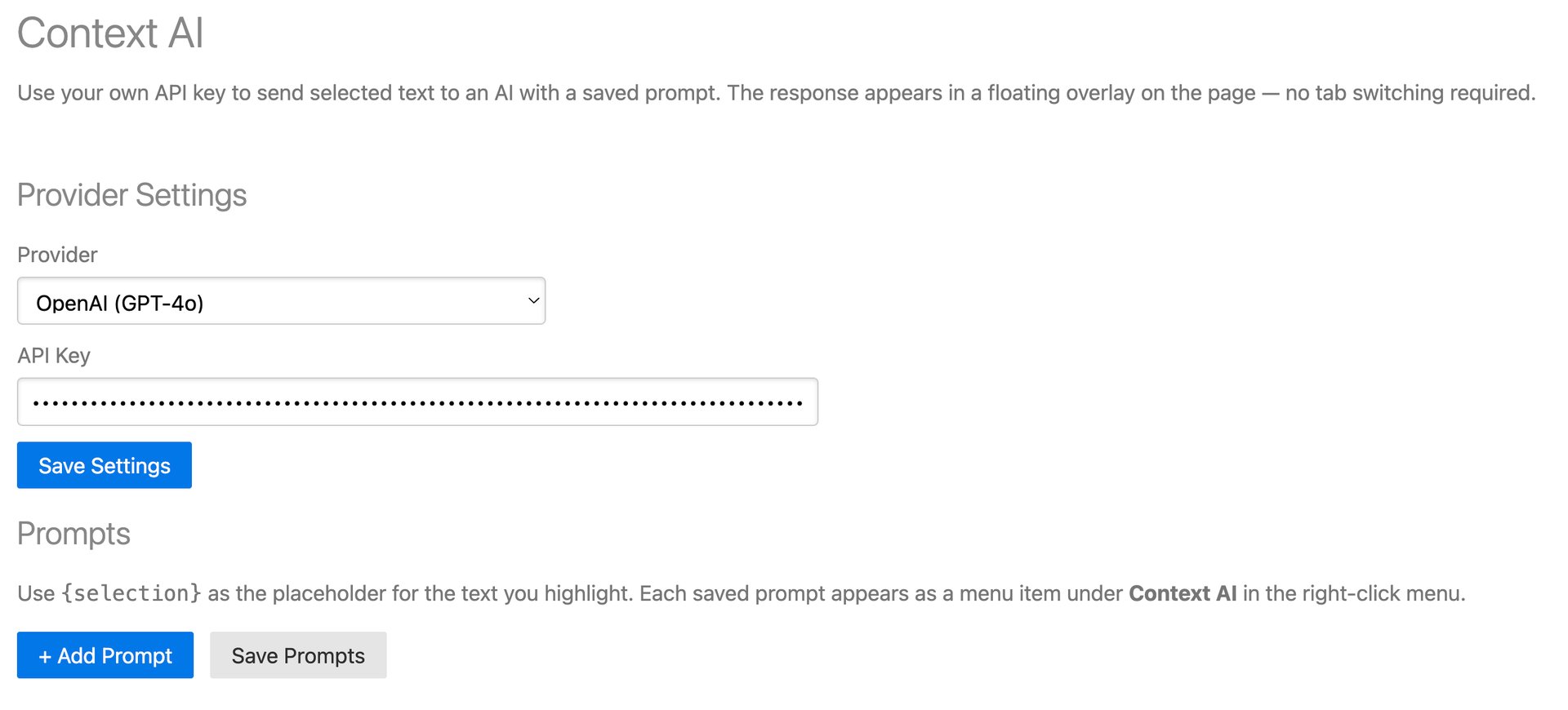
Step 1 — Choose a Provider
Context AI supports two providers:
- OpenAI (GPT-4o and other models)
- Anthropic (Claude)
Open Options → Context AI and
select your preferred provider from
the dropdown.
Step 2 — Enter Your API Key
Paste your API key into the API Key field and click Save.
- OpenAI: Get your key at https://platform.openai.com/api-keys
- Anthropic: Get your key at https://console.anthropic.com
Your API key is stored locally in your browser and never sent anywhere except directly to your chosen provider when a prompt is executed.
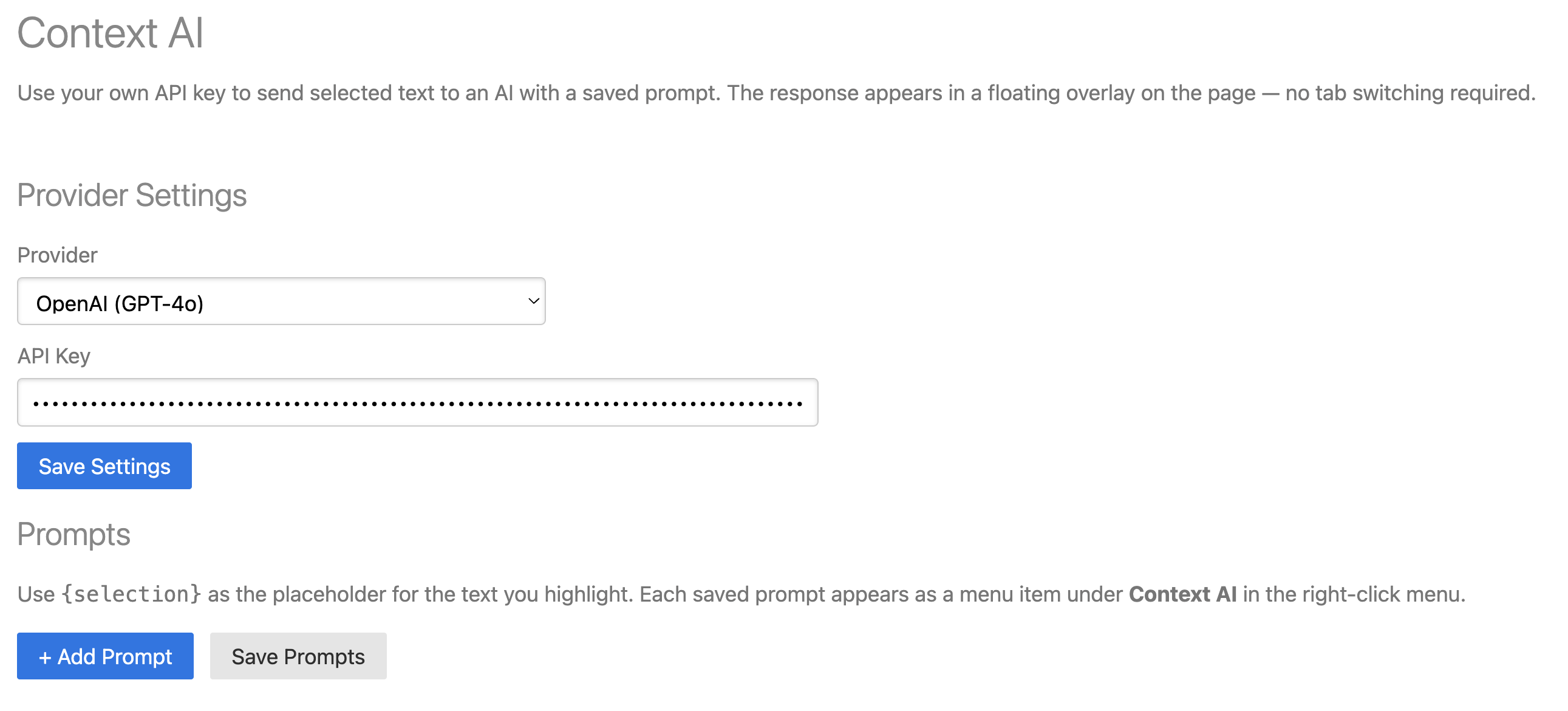
Step 3 — Add Prompts
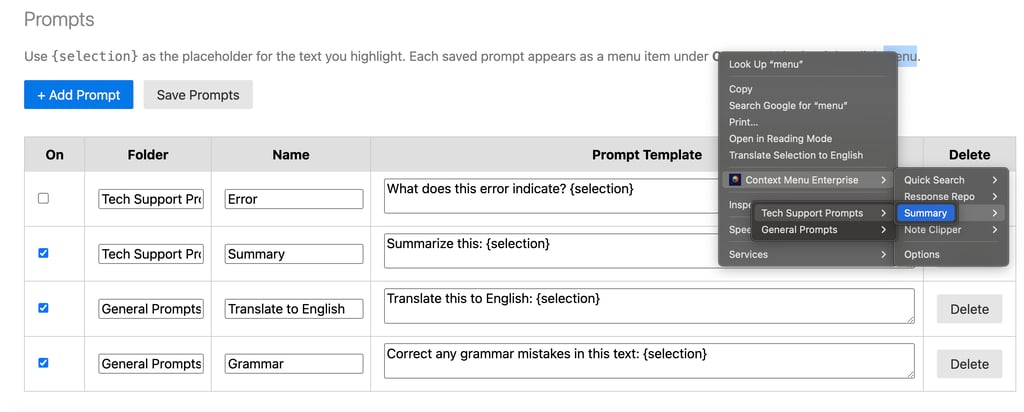
1. Click + Add Prompt.
2. Enter a title (this appears in the
right-click menu).
3. Enter the prompt text. Use {{selection}}
as a placeholder for the text you will
highlight on the page.
4. Click Save.
Example prompt:
- Title: Summarize
- Prompt: Summarize the following text in 2-3 sentences: {{selection}}
Using Context AI
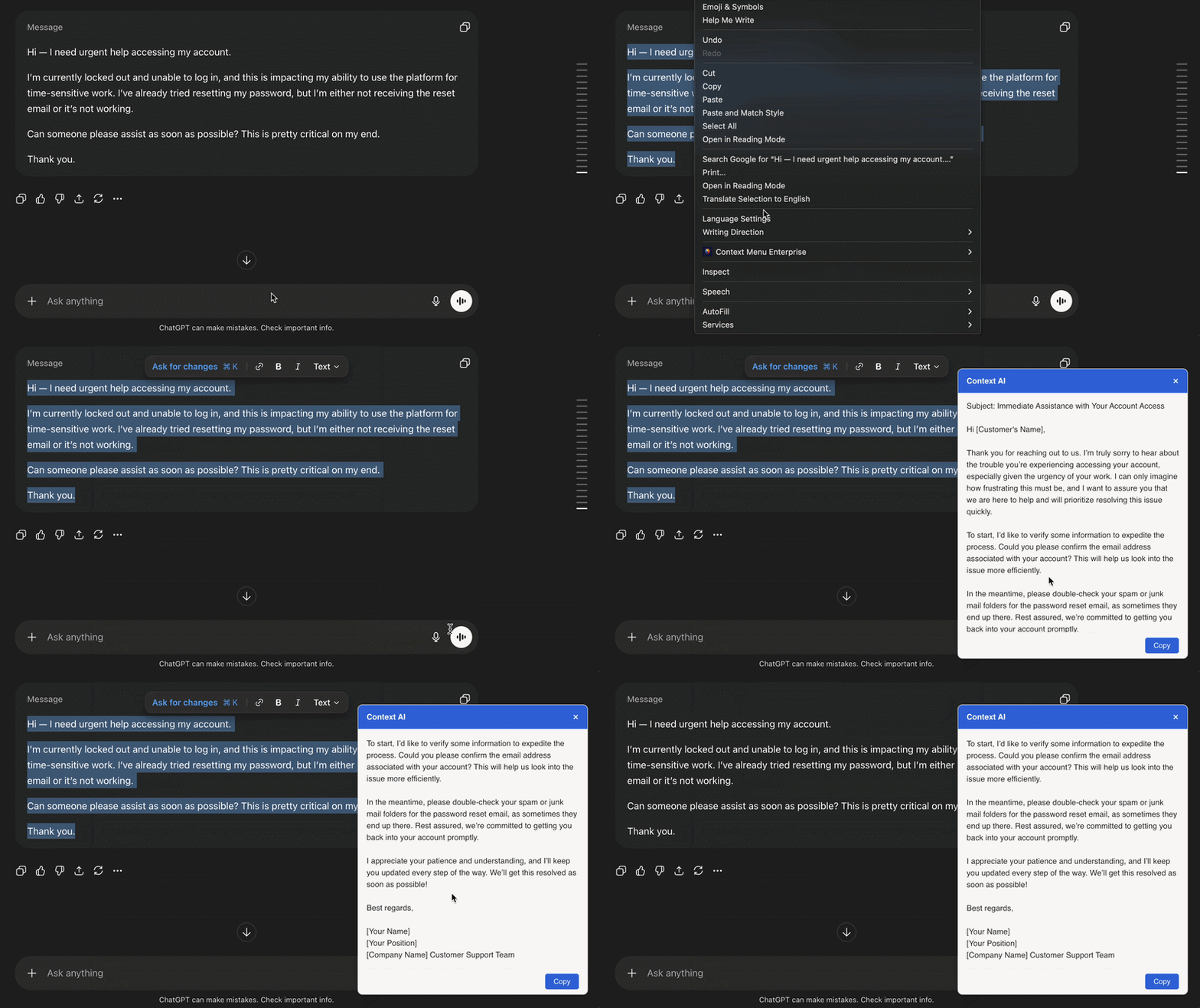
1. Highlight any text on a webpage.
2. Right-click and hover over Context Menu Enterprise → Context AI.
3. Click the prompt you want to run.
4. The AI response will appear in an overlay on the page.
5. You can copy the response from the overlay or dismiss it by clicking the X button at the top right corner.
Note, the overlay can be moved around the page if needed.
Organizing Responses
Folders
Group related responses into folders to keep your menu clean as your library grows. In the Folder (optional) field, enter the name of the folder. This will be the folder name in your menu. When using an existing folder, make sure the folder name matches exactly, otherwise a new folder will be created. Folders appear as submenus in the right-click menu.
Drag and Drop
Reorder responses and folders by clicking the drag handle on any row and dragging it to the desired position.
Disabling Responses
Uncheck the checkbox on any response to disable it. Disabled responses are hidden from the context menu but remain saved in your options for future use.
Editing and Deleting
- You can Edit your responses including folder, prompt name, and prompt content. When you're finished, don't forget to click the Save button at the top of the menu options to save your changes.
- Click the trashcan icon to the right of your prompt to permanently remove it.
Team-Managed Prompts
If your administrator has connected a Team Configuration with Context AI settings, the org's AI provider and API key will be applied automatically. This means your team can run AI prompts without each user needing their own API key.
When the provider and key are managed by your admin, those settings will be locked in your options tab. You can still add your own personal prompts — they will run using the org's API key alongside any managed prompts your admin has pushed.
Tips
- Keep prompt titles short — they appear directly in the right-click submenu.
- Be specific in prompt text — the more precise your prompt, the more consistent and useful the output.
- Use folders by use case — group prompts by function (Summarize, Rewrite, Escalation, Translation) so agents can find the right one quickly.
- Escalation prompts — a prompt like Draft a professional escalation email for the following issue: {{selection}} can save significant time for support teams.
- API costs — each prompt execution makes an API call to your provider. Monitor usage in your provider dashboard, especially for high-volume teams.
Subscribe