Response Repo
How to store, organize, and use saved responses, scripts, and SOPs from the right-click menu.
Response Repo
Response Repository lets you save frequently used text — support responses, scripts, email templates, SOPs, canned replies — and paste them directly into any text field with a single right-click. No more switching to a doc, finding the right response, copying, and switching back.
Unlike text expanders and shortcut-based tools that require your team to memorize trigger phrases, Response Repository is fully browsable. Agents navigate the folder structure in the right-click menu and select what they need — no memorization, no training overhead, and no hunting through a shared doc.
Adding a Response
Adding a Response
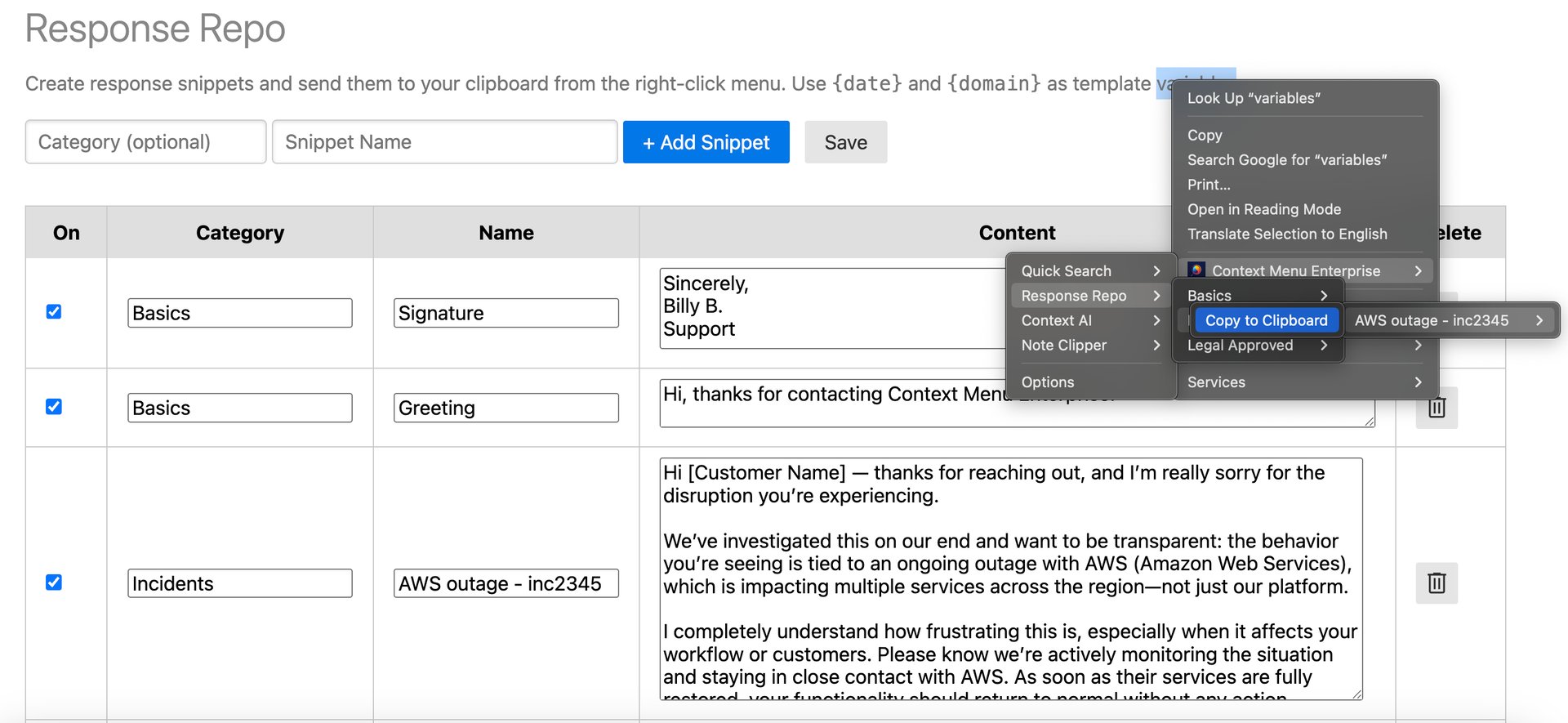
1. Open the extension and go to Options.
2. Click the Response Repository tab.
3. Enter a category (folder name).
4. Enter snippet name.
5. Click + Add Snippet.
6. Scroll down to your snippet and add the response text.
6. Click Save.
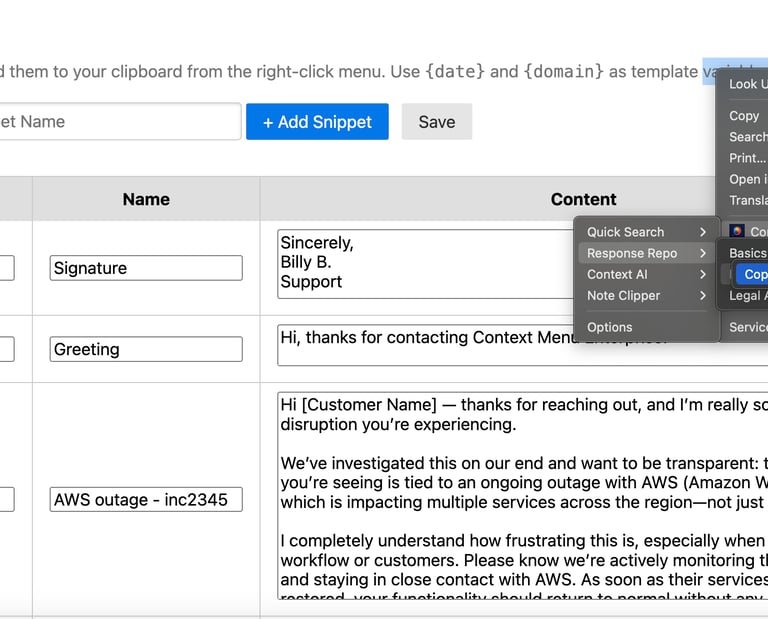
The response will appear immediately in your right-click menu under Context Menu Enterprise → Response Repository.

Using a Response
To use a response:
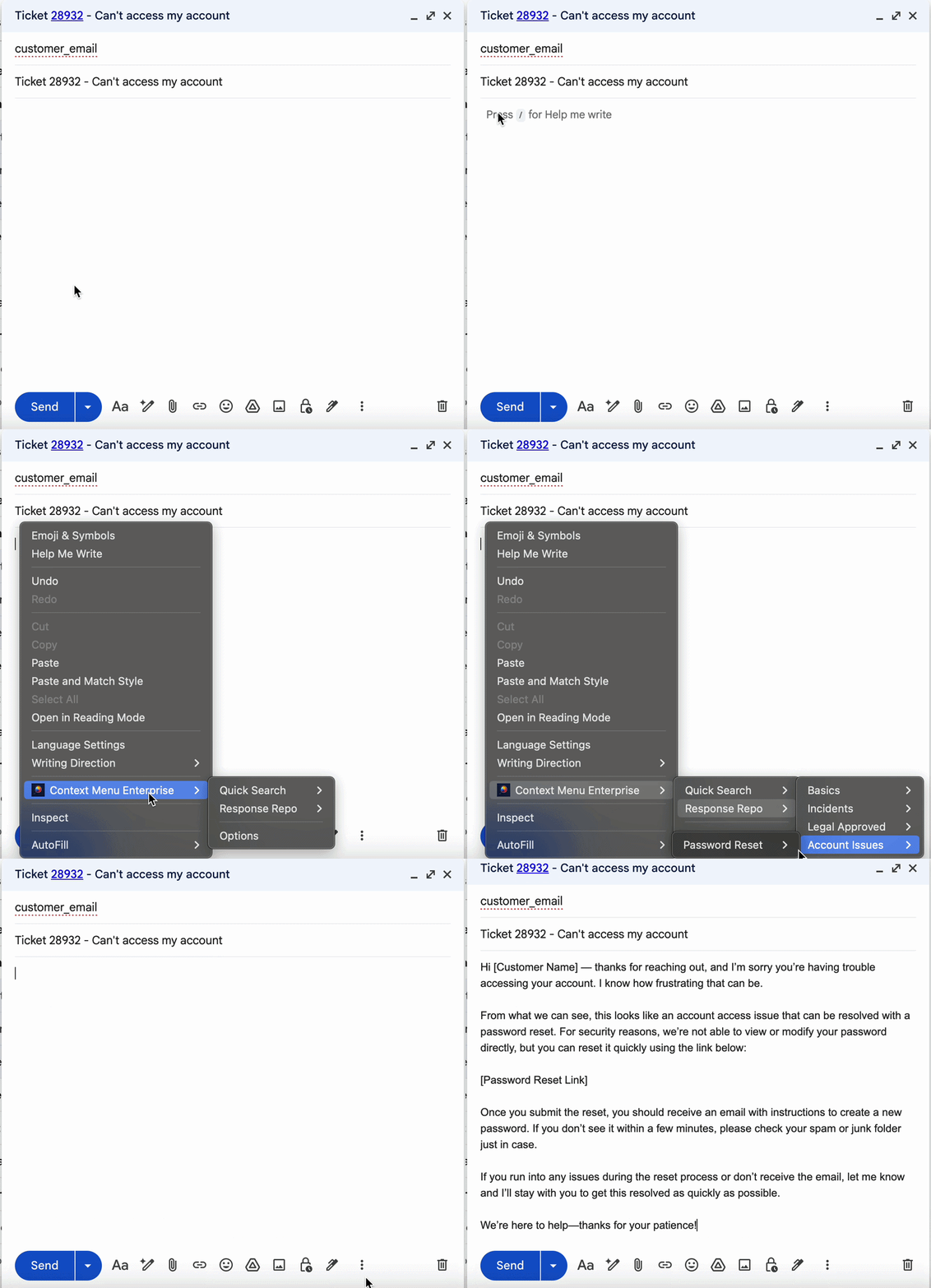
1. Click into any text field on any webpage (support ticket, email, chat, form).
2. Right-click anywhere on the page.
3. Hover over Context Menu Enterprise → Response Repo.
4. Select the response you want to send.
5. Click Paste at Cursor to insert the text at your cursor, or Copy to Clipboard to copy the response to your clipboard.
You will only see the Paste at Cursor option if your cursor is active within a text input field.
Organizing Responses
Categories (aka Folders)
Group related responses into categories to keep your menu clean as your library grows. In the Category (optional) field, enter the name of the category. This will be the folder name in your menu. When using an existing category / folder, make sure the category name matches exactly otherwise a new folder will be created.
Categories appear as submenus in the right-click menu.
Drag and Drop
Reorder responses and folders by clicking the drag handle on any row and dragging it to the desired position.
Disabling Responses
Uncheck the checkbox on any response to disable it. Disabled responses are hidden from the context menu but remain saved in your options for future use.
Editing and Deleting
- You can Edit your responses including category, name, and snippet content. When you're finished, don't forget to click the Save button at the top of the menu options to save your changes.
- Click the trashcan icon to the right of your snippet content to permanently remove a response.
Team-Managed Responses
If your administrator has connected a Team Configuration, managed responses will appear in your Response Repo menu automatically. For example, when a product incident occurs, legal issues arise, or a new SOP is rolled out, administrators can push updated responses to every user's menu instantly — ensuring the entire team is aligned on approved wording without relying on email updates, Slack messages, or hoping people remember to check a shared doc.
Note, if the product is locked by your admin, the Add, Edit, and Delete controls will be hidden on the options page and only managed responses will appear.
Subscribe