Note Clipper
How to clip selected text directly to Google Docs or Notion from the right-click menu.
Note Clipper
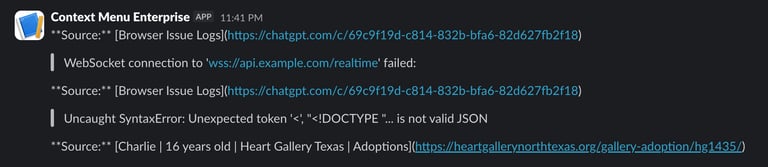
With a single right-click, Note Clipper lets you save selected text from any webpage directly to Notion, Slack, Microsoft Teams, or a Generic Webhook (Zapier, Make, custom endpoints) — no tab switching, no copying, no pasting. Each clip is saved with a link back to the source page so you always know where it came from.
Setup
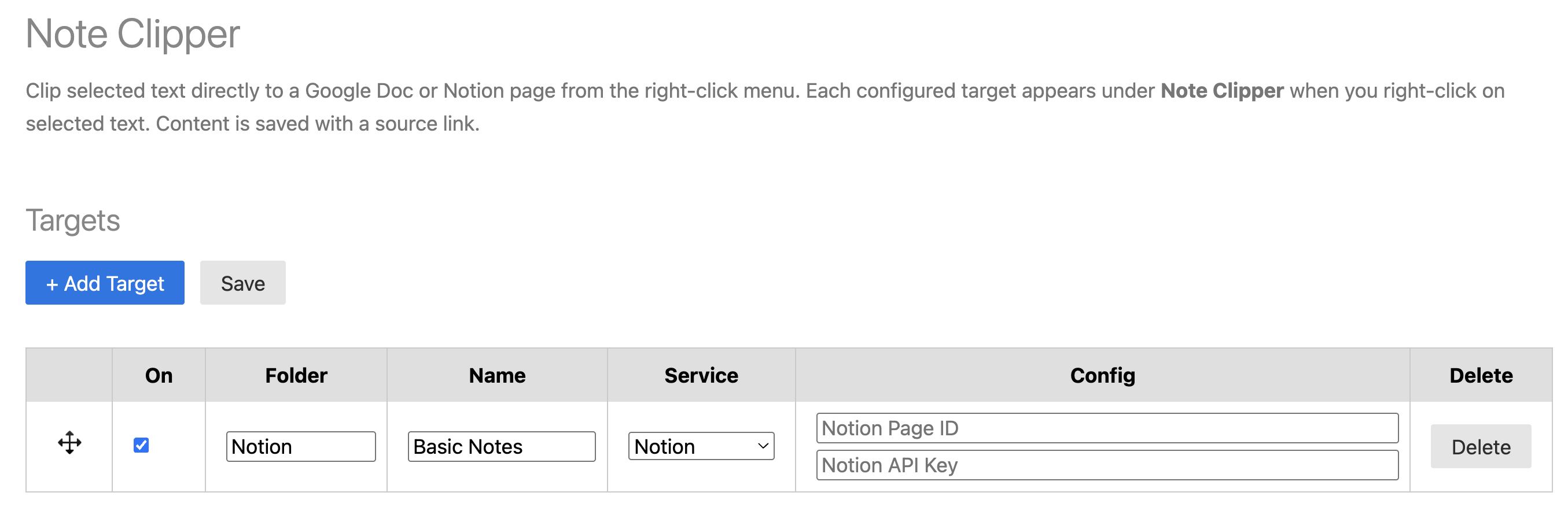
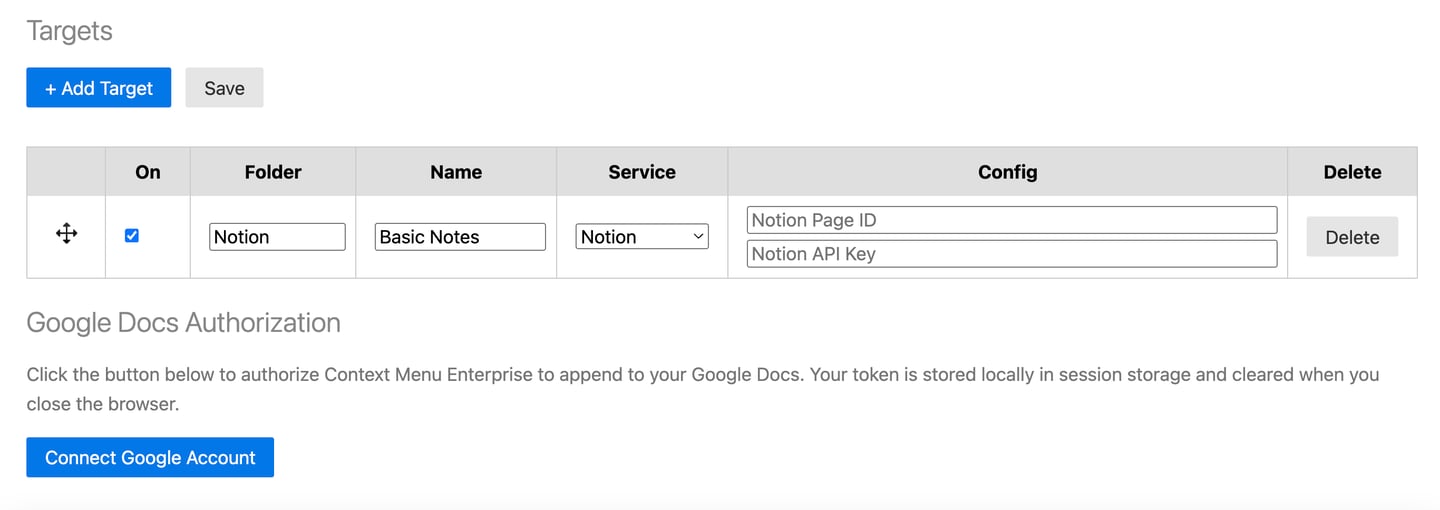
Notion
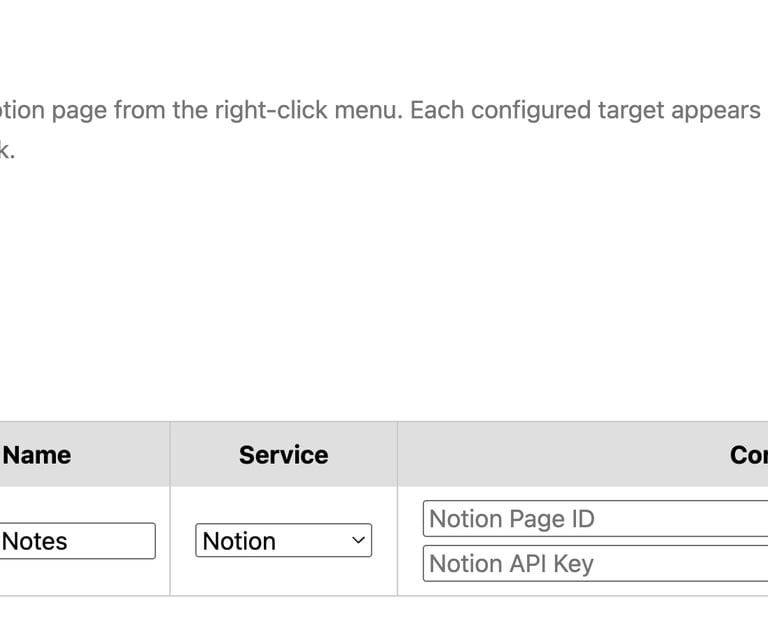
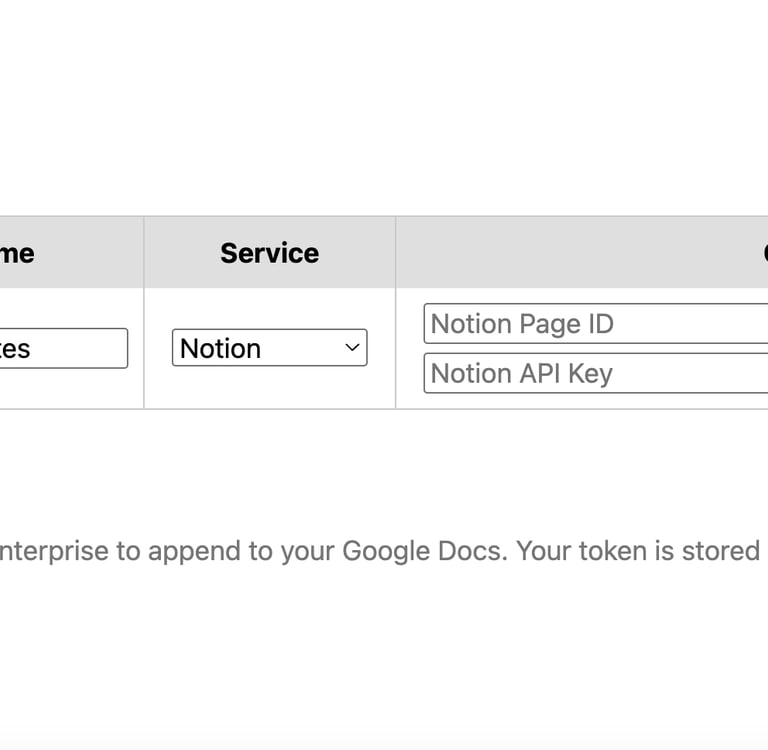
1. Select Notion as the service.
2. Enter the Notion Page ID — the last part of the Notion
page URL:
https://www.notion.so/Your-Page-Title-YOUR_PAGE_ID
3. Enter your Notion Internal Integration API Key. To
create one:
- Go to https://www.notion.so/my-integrations
- Click New integration, give it a name, and copy the API key
- Open the Notion page you want to clip to, click the ... menu → Connect to → select your integration
4. Click Save.
Slack
1. Select Slack as the service.
2. Create an Incoming Webhook in Slack:
- Go to https://api.slack.com/apps → Create New App → From scratch
- Name the app, select your workspace, click Create App
- In the left sidebar: Incoming Webhooks → toggle to On
- Click Add New Webhook to Workspace, select a channel, click Allow
- Copy the webhook URL (https://hooks.slack.com/services/...)
3. Paste the webhook URL into the Slack Incoming Webhook URL field.
4. Click Save.
Clips will be posted to the selected Slack channel including the content and source URL.
Microsoft Teams
1. Select Microsoft Teams as the service.
2. Create an Incoming Webhook in Teams:
- Open the channel you want clips posted to
- Click ... next to the channel name → Connectors
- Find Incoming Webhook → Configure
- Give it a name (e.g. "Context Menu Enterprise") → Create
- Copy the webhook URL
3. Paste the webhook URL into the Teams Incoming Webhook URL field.
4. Click Save.
Webhook (Generic)
Use this option to connect Note Clipper to any HTTP
endpoint — Zapier, Make, a custom API, or any tool that
accepts a POST request.
1. Select Webhook as the service.
2. Paste your endpoint URL into the Webhook URL field.
3. Click Save.
When a clip is triggered, the extension sends a POST request with a JSON body:
{ "content": "the clipped text",
"source_url": "https://page-where-clip-was-taken.com",
"source_title": "Page Title" }

Using Note Clipper
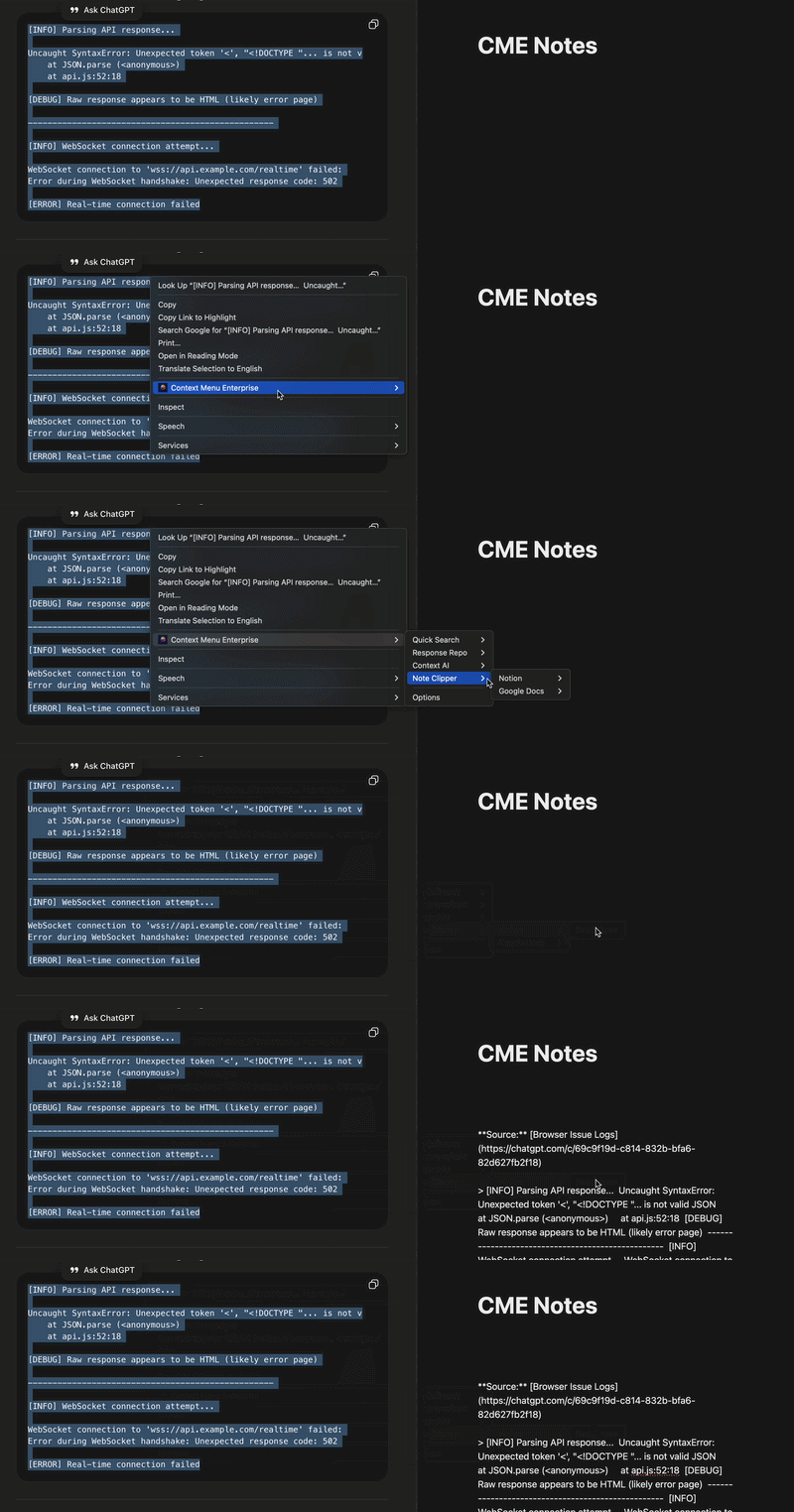
1. Highlight any text on a webpage.
2. Right-click and hover over Context Menu Enterprise → Note Clipper.
3. Click the target you want to clip to.
4. The selected text is appended to your document or page along with a link to the source URL.
Organizing Targets
Folders
Group targets into folders for cleaner menu navigation.
1. Enter a folder name in the Folder field when adding or editing a target.
2. Targets with the same folder name will be grouped together under that folder in the right-click menu.
Drag and Drop
Reorder responses and folders by clicking the drag handle on any row and dragging it to the desired position.
Disabling Targets
Uncheck the checkbox on any response to disable it. Disabled responses are hidden from the context menu but remain saved in your options for future use.
Editing and Deleting
- You can Edit your responses including folder, prompt name, and prompt content. When you're finished, don't forget to click the Save button at the top of the menu options to save your changes.
- Click the trashcan icon to the right of your prompt to permanently remove it.
Team-Managed Notes
If your administrator has connected a Team Configuration, managed Note Clipper targets will appear at the top of the menu automatically. If the product is locked, the Add, Edit, and Delete controls will be hidden. Contact your administrator to request changes.
Troubleshooting
Google authorization expired
A yellow banner will appear at the top of the Note Clipper tab when your Google authorization has expired. Click Re-connect Google and follow the prompts to reauthorize.
Clips not appearing in the document
- Confirm the Document ID is correct — copy it directly from the Google Doc URL
- Confirm you are signed into the Google account that has edit access to the document
- Re-authorize Google if the banner appears
Notion clips failing
- Confirm the Page ID is correct
- Confirm the integration has been connected to the Notion page (the Connect to step in setup is commonly missed)
- Confirm the API key matches the integration that is connected to the page
Subscribe