Quick Playbook
How to use the Quick Playbook product to implement and manage SOPs across your team.
Quick Playbook
Build step-by-step SOPs that run directly in the Chrome side panel
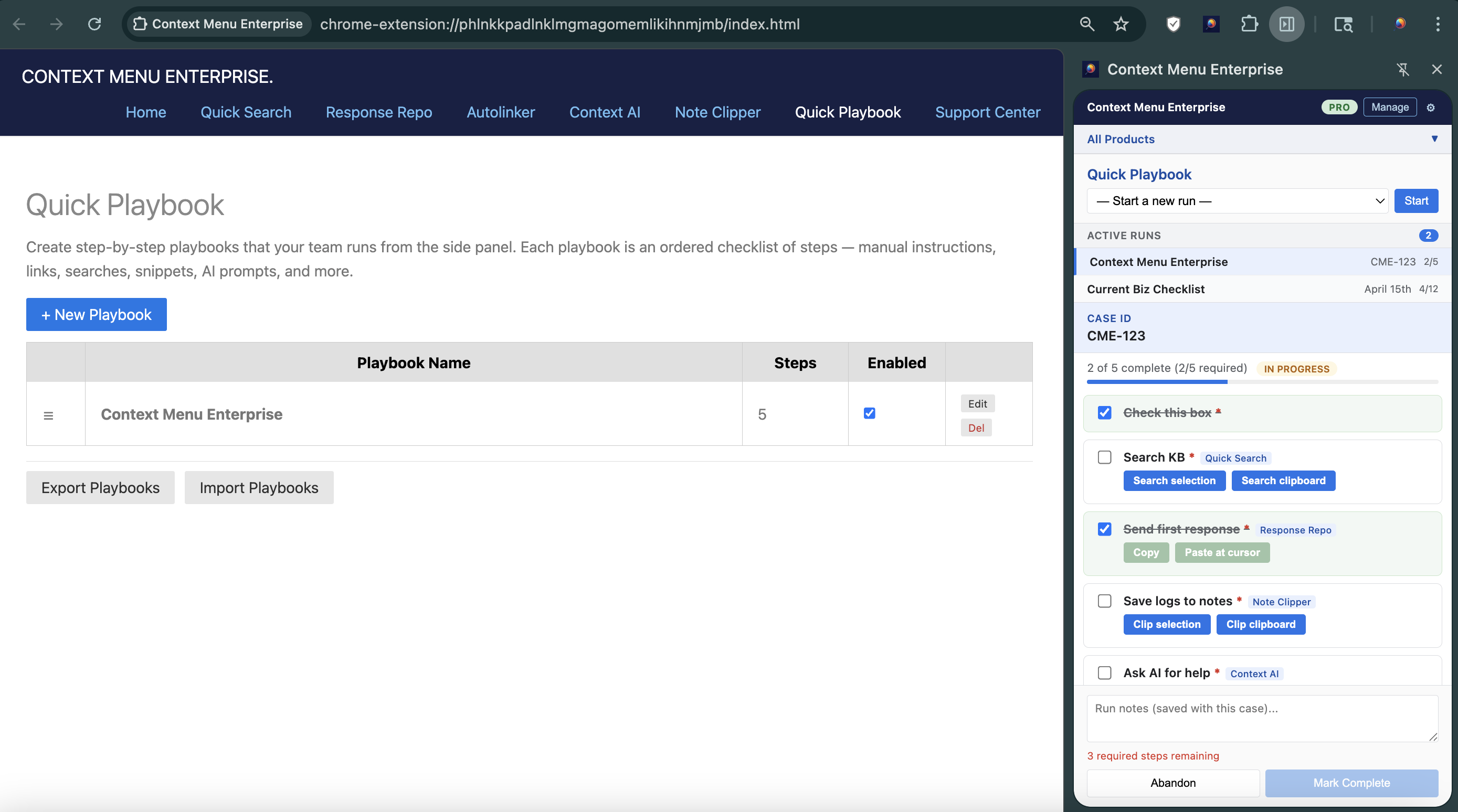
Quick Playbook turns your standard operating procedures into interactive, trackable checklists. Each step can be manual or automatically fire any Context Menu Enterprise product — Quick Search, Response Repo, Context AI, or Note Clipper. Your team follows the same process every time, and you can see exactly where they are.
How It Works
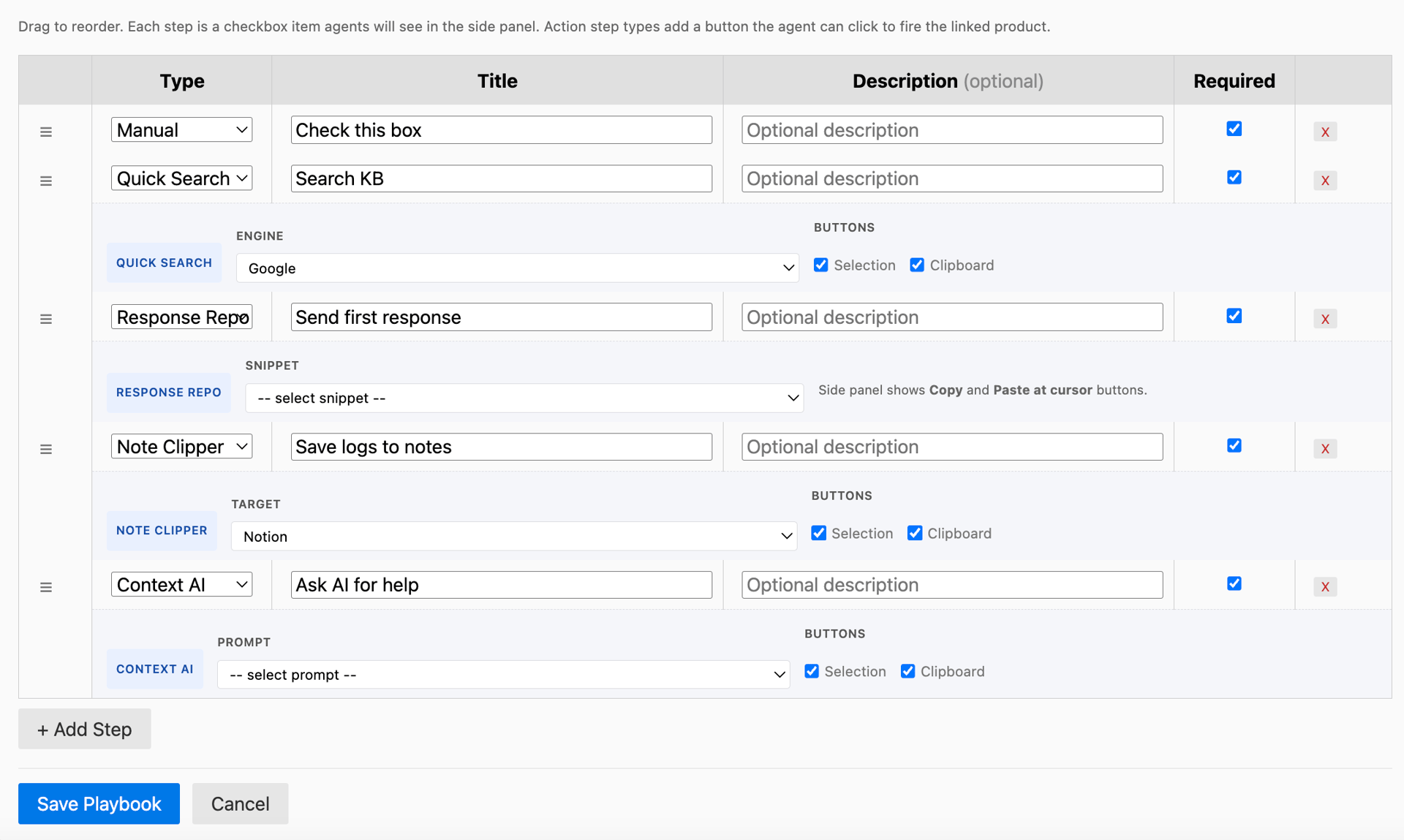
1. Create a playbook in the Options page. Give it a name, category, and a context key label (e.g. "Ticket ID", "Case Number", "Account Name").
2. Add steps. Each step has a type:
- Manual — A checkbox the user marks when they've completed a task ("Verify the customer's identity", "Check for open escalations").
- Quick Search — Opens a search in the configured engine using selected text or clipboard contents.
- Response Repo — Copies or pastes a configured snippet. Supports {contextKey} substitution so the ticket ID or case number is inserted automatically.
- Context AI — Runs a configured AI prompt on selected text or clipboard contents.
- Note Clipper — Clips selected text to a configured Notion page, Slack channel, or webhook.
3. Run the playbook. Right-click any page, go to Quick Playbook, and select the playbook. Enter the context key when prompted (e.g. "TICKET-4821"). The Chrome side panel opens with your checklist.
4. Work through the steps. Manual steps are checked off by hand. Action steps (Quick Search, Response Repo, Context AI, Note Clipper) fire with one click and auto-check when complete. Each action step shows buttons for the input sources you enabled — Selection, Clipboard, Copy, or Paste.
5. Resume anytime. Close the side panel, switch tabs, come back later — your run is saved. Reopen the side panel and pick up where you left off.
6. Complete or abandon. When all required steps are checked, mark the run as complete. If the process is no longer needed, abandon it. Completed and abandoned runs are retained for 30 days.

Input Sources
Action steps support multiple input sources. Enable the ones your workflow needs in the playbook editor:
- Selection — Uses text currently highlighted on the page.
- Clipboard — Uses text currently on the clipboard.
Response Repo steps always show two buttons: Copy (to clipboard) and Paste (at cursor).
Each enabled source becomes its own button in the side panel, so an agent can choose the right one in the moment.
Staying Organized
Context Key
Every playbook run has an optional context key — a value like a ticket ID, case number, or account name that ties the run to a specific piece of work.
- Set the context key label when creating the playbook (e.g. "Ticket ID").
- Enter the value when starting a run.
- The context key is available as {contextKey} in Response Repo snippets for automatic substitution.
- The context key is read-only once the run starts. To edit it, click the context key in the active runs list.
Team Config
Admins can push managed playbooks to their team via Team Config, just like Quick Search engines or Response Repo snippets.
- Managed playbooks appear with a MANAGED badge and are read-only for end users.
- When lock is enabled, personal playbooks are hidden — only managed playbooks appear.
- Export Team Config from the Options page to include playbooks in the JSON.
Tips
Start simple. A 3-step playbook that your team actually uses beats a 20-step playbook they skip.
Use the context key. It makes Response Repo substitution work and keeps your active runs list organized.
Combine with Autolinker. If your playbook references ticket IDs or account numbers, Autolinker will make them clickable on the pages your team visits during the run.
Multiple active runs. Agents can have several runs open at once — useful when juggling tickets. Switch between them from the active runs list in the side panel.
Subscribe